I’ve been using IDM for years and finally decided to look for a free alternative. It’s not that IDM isn’t good, but the anxiety of searching for activation codes and worrying about them expiring after an update made me feel it wasn’t worth it.
I spent a week using a legitimate IDM license as a benchmark, and on the same computer with the same 1000M broadband connection, I tested five mainstream free tools. Some performed surprisingly well, while others seemed feature-rich but had stability issues in practice.
This article presents the complete test data and my personal experience, helping you skip the trial-and-error process and find the right tool for you directly.
Quick Conclusion (Skip the Details if You Prefer)
| Tool | Large File Speed | Popular Resource Speed | Free | Recommended Scenario |
|---|---|---|---|---|
| FDM | 60 MB/s | 110 MB/s | ✅ | Overall first choice, everyday downloads |
| XDM | 60 MB/s | 90 MB/s | ✅ | When video format conversion is needed |
| Motrix | 60 MB/s | 80 MB/s | ✅ | BT + HTTP multi-protocol |
| NDM | 60 MB/s | 50 MB/s | ✅ | Best replacement for current IDM users |
| Gopeed | 60 MB/s | 50 MB/s | ✅ | Potential for P2P scenarios |
| IDM (Genuine) | 65 MB/s | 120 MB/s | ❌ | Heavy download users |
| Vidmost | — | — | Partially Free | Video/members-only content download |
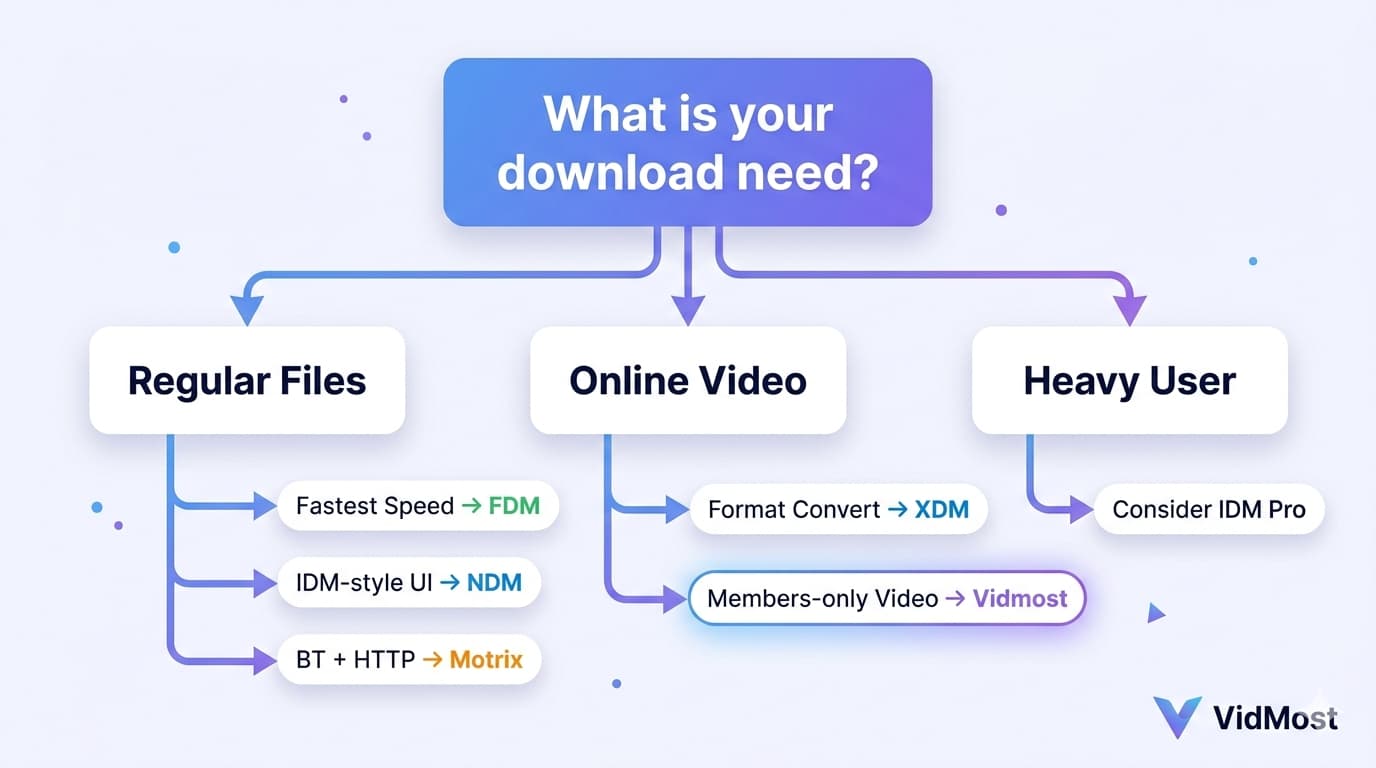
In a nutshell: For regular file downloads, choose FDM; it’s free and performs close to genuine IDM. For videos and members-only platform content, Vidmost is more reliable due to its specialized optimization.
Why Look for a Free IDM Alternative?
IDM’s download acceleration capabilities are undeniable, but it has two frustrating aspects:
High Price Barrier. A genuine license is not cost-effective for users who only occasionally download a few files. The constant pop-up reminders after the trial period also create a poor user experience.
Troublesome Activation Codes. Online activation methods vary in quality, and it’s common for them to stop working after version updates, requiring you to go through the hassle again.
The key is that free download tools have become increasingly mature. Core IDM features like multi-threaded downloads, automatic link capture, and resume broken downloads are now supported by most mainstream open-source tools. Instead of spending time searching for activation codes, it’s better to try these tools directly.
Test Environment Specifications
Tests were conducted to be as fair as possible under the following conditions:
- Network: 1000M home broadband (peak actual speed around 125 MB/s)
- Test File 1: Large system image (official/CDN server, testing multi-thread stability)
- Test File 2: Windows 11 Professional installer (popular resource, high server load, testing performance in complex network environments)
- Settings: All tools used default settings without additional parameter adjustments.
- Recording Method: Recorded peak and average download speeds, paused to switch to the next tool.
⚠️ Note: Download speeds are subject to network fluctuations and server status. Single data points may vary, but the relative differences across multiple tools are the most reliable indicators.
Detailed Test Results of 5 Free Tools
Free Download Manager (FDM) — Best Overall Performance
FDM was the most satisfying free tool in this test, without exception.
Installation Experience: A straightforward next-step installation with no bundled software and a clean interface.
Speed Performance:
- System Image: Stable around 60 MB/s.
- Windows 11 Installer: Peak speed exceeded 110 MB/s and remained stable.
Achieving 110 MB/s on popular resources exceeded my expectations. Many believe free tools significantly lag behind on popular resources, but FDM completely shattered this impression.
Notable Feature: Allows setting download schedules and speed limits. If you need bandwidth for meetings or work during the day, let FDM start tasks automatically at night, and your files will be ready by morning. This feature is very practical for those who frequently download large files.
Who is it for: FDM is the top choice for anyone seeking a free, stable, and functionally sufficient everyday download tool.
Xtreme Download Manager (XDM) — Features Video Conversion
XDM is small, boots up quickly, and its interface bears a resemblance to IDM, making it easy for existing IDM users to get started.
Speed Performance:
- System Image: 60 MB/s, on par with FDM.
- Windows 11 Installer: Maintained around 90 MB/s, a notch below FDM.
XDM’s Highlight: Supports automatic file format conversion after download. When downloading videos, you can directly set them to convert to MP4, saving you the trouble of manual conversion later.
Minor Issue: Occasionally, the speed might drop suddenly, though it recovers quickly. Its stability is slightly less than FDM’s.
Who is it for: Users who frequently download video files and need format conversion. If your primary need is to download member-exclusive videos from platforms like OnlyFans or YouTube, XDM’s general solution might not be sufficient – for such scenarios, refer to the Vidmost section later.
Gopeed — A Potential Player in P2P Acceleration
Gopeed is the most unique among these tools, utilizing P2P acceleration technology similar to BitTorrent – theoretically, the more people using it simultaneously, the faster the speed.
Installation Experience: Slightly more involved than other tools, requiring extraction and then running the installer. Upon first opening, select “Use Local Language Display” to switch the interface to Chinese.
Speed Performance:
- System Image: 60 MB/s, normal.
- Windows 11 Installer: Only a little over 50 MB/s, below expectations.
Theoretically, popular resources are where P2P acceleration should shine, but the actual test results were the poorest. This is likely because Gopeed’s user base is not yet large enough; with fewer people downloading the same file simultaneously, the P2P acceleration effect is diminished.
Long Term Outlook: Gopeed is an open-source project, and as its user base grows, the P2P acceleration effect will become more pronounced. Getting in now is early, but if you need speed right away, FDM is a more stable choice.
Motrix — A Versatile Multi-Protocol Tool with Minor Flaws
Motrix boasts the most modern interface design among these tools. It supports HTTP, BT, and magnet links, and is cross-platform (Windows/Mac/Linux).
Speed Performance:
- System Image: 60 MB/s, stable.
- Windows 11 Installer: Around 80 MB/s, placing it in the mid-tier.
Helpful Feature: Automatically recognizes download links in the clipboard. After copying a link, a prompt immediately asks if you want to download it. This feature saves a lot of manual operation when handling multiple tasks simultaneously.
Issue: Some links may fail to parse. While not all links are problematic, occasional compatibility issues affect the overall experience.
Who is it for: Users who need to handle both BT/magnet downloads and regular HTTP downloads within a single tool.
NDM (Neat Download Manager) — The Best Replacement for IDM Veterans
My first impression upon opening NDM: Isn’t this just IDM with a different name? The layout, button positions, and even the color scheme are almost identical. For users accustomed to IDM’s workflow, the learning curve for NDM is virtually zero.
Speed Performance:
- System Image: 60 MB/s, normal.
- Windows 11 Installer: Around 50 MB/s, on the lower end of the five.
Speed is not NDM’s strong suit, but its stability is good – no significant speed fluctuations or stuttering occurred throughout the testing process. The interface is in English, but if you don’t mind that, it’s very smooth to use.
Who is it for: Users migrating from IDM who don’t want to adapt to a new interface.
Genuine IDM: How Big Is the Real Difference?
As a benchmark, here’s how genuine IDM performed:
- System Image: Average 65 MB/s, about 5 MB/s faster than the free tools.
- Windows 11 Installer: Consistently above 120 MB/s, the highest value in this test.
However, here’s a key conclusion: When downloading regular files, the difference between IDM and FDM is almost imperceptible. Only when downloading popular resources or during prolonged, high-intensity downloads does IDM’s advantage become more evident.
Another advantage of IDM is its completeness of features – deeper browser integration, more refined download classification management, and more advanced settings options. But for average users, these functions might not be essential.
Specialized Scenarios: What to Use for Downloading Videos and Member Content?
The five tools tested above are for conventional file downloads. If your need is to download video content from platforms like OnlyFans, YouTube, or Twitch, the situation is different.
Videos from these platforms have three characteristics that make them difficult for standard download tools to handle:
- Videos are split into hundreds of dynamically loaded segments with no fixed file address.
- Audio and video are stored separately and need to be merged.
- Member content has permission verification, which ordinary tools cannot recognize logged-in status for.
Vidmost is a tool specifically optimized for this scenario. Instead of simply sniffing browser traffic, it can recognize your subscription status and directly access the original high-definition files, providing the same quality as online viewing.
For OnlyFans users, Vidmost offers another practical function: batch downloading all videos from a specific creator. Provide the profile link, and it automatically lists all content for a one-time bulk download.
Supported platforms: OnlyFans, YouTube, Twitch, Reddit, X, and over 1000 other websites, as well as m3u8 format online course videos.
Use FDM for general file downloads and Vidmost for videos and member content. Using these two tools in tandem covers most download scenarios.
How to Choose? A Picture Says It All
Frequently Asked Questions
Are these free tools safe? Do they come with bundled software?
All tools mentioned in the article are open-source or have legitimate official websites, making them inherently safe. The key is to download them from the official website and avoid third-party download sites, which often bundle adware. Carefully review each step during installation and cancel any “Recommended Installation XXX” prompts.
Why are my test speeds different from those in the article?
This is normal. Download speeds are affected by your broadband, router, server load, and current network congestion, so test results will vary each time. The data in the article represents my test environment; the relative differences in horizontal comparison are more valuable than absolute numbers. If your speeds are significantly lower, first check if any other programs are using bandwidth.
Do these tools support resuming downloads?
Yes, they all do. If your internet connection drops or you shut down your computer mid-download, reopening the tool will automatically detect incomplete tasks and resume downloads from the break point, eliminating the need to start over. This feature is crucial when downloading files tens of gigabytes in size.
Can I install multiple download tools simultaneously?
You can install them, but running them simultaneously is not recommended. Multiple tools running in parallel will compete for bandwidth, reducing the overall speed and consuming extra memory. Choose one primary tool for daily use.
Can regular download tools download OnlyFans videos?
The success rate is very low. OnlyFans videos depend on dynamic playback and member permission verification. Ordinary downloaders usually cannot recognize them or can only capture parts of the content. For this scenario, Vidmost is more reliable for eligible member-platform workflows, with output quality depending on the signed-in playback session.
Should I buy genuine IDM?
It depends on your usage frequency. If you have a large volume of downloads daily, IDM’s speed advantage on popular resources (about 10-20 MB/s faster than free tools) and its more comprehensive features are worth the cost. If you only occasionally download a few files, free tools are more than sufficient, and you lose nothing by saving the money.