You’ve subscribed to a creator on Patreon, paid for access, and watched their exclusive videos. Now you want to save them locally — for offline viewing, for archiving, or simply to make sure you don’t lose access if the creator deletes content or closes their account.
But there’s no download button on Patreon. And every tool you’ve tried either fails silently or gives you a black screen.
This isn’t a bug. It’s intentional. Patreon paid video content usually depends on login sessions, membership tiers, and platform access rules, which makes standard tools unreliable.
This guide shows one reliable workflow: using VidMost to save Patreon videos you are allowed to archive, within platform terms and authorization scope.
Why Standard Tools Can’t Download Patreon Videos
Before the steps, it helps to understand why the usual approaches fail.
Patreon member video playback is usually tied to your login session, membership tier, and platform access rules. When you play a video, Patreon confirms whether your account has the right access. Standard tools hit a wall at this point:
-
Screen recorders may produce a black screen because of platform playback protection
-
Browser extensions often cannot reproduce the logged-in playback session
-
yt-dlp can fail because of login, membership, or playback validation
VidMost is different. It’s a Chromium-based browser with browser recording mode for normal playback. It plays the video in a normal browser session and records the browser-rendered playback as a local file within your authorization scope — no plugins, no command line, no technical configuration.
What You Need Before Starting
-
VidMost installed on your computer (available for Windows and Mac)
-
An active Patreon account
-
An active subscription to the creator whose videos you want to save, where platform terms and creator authorization allow saving
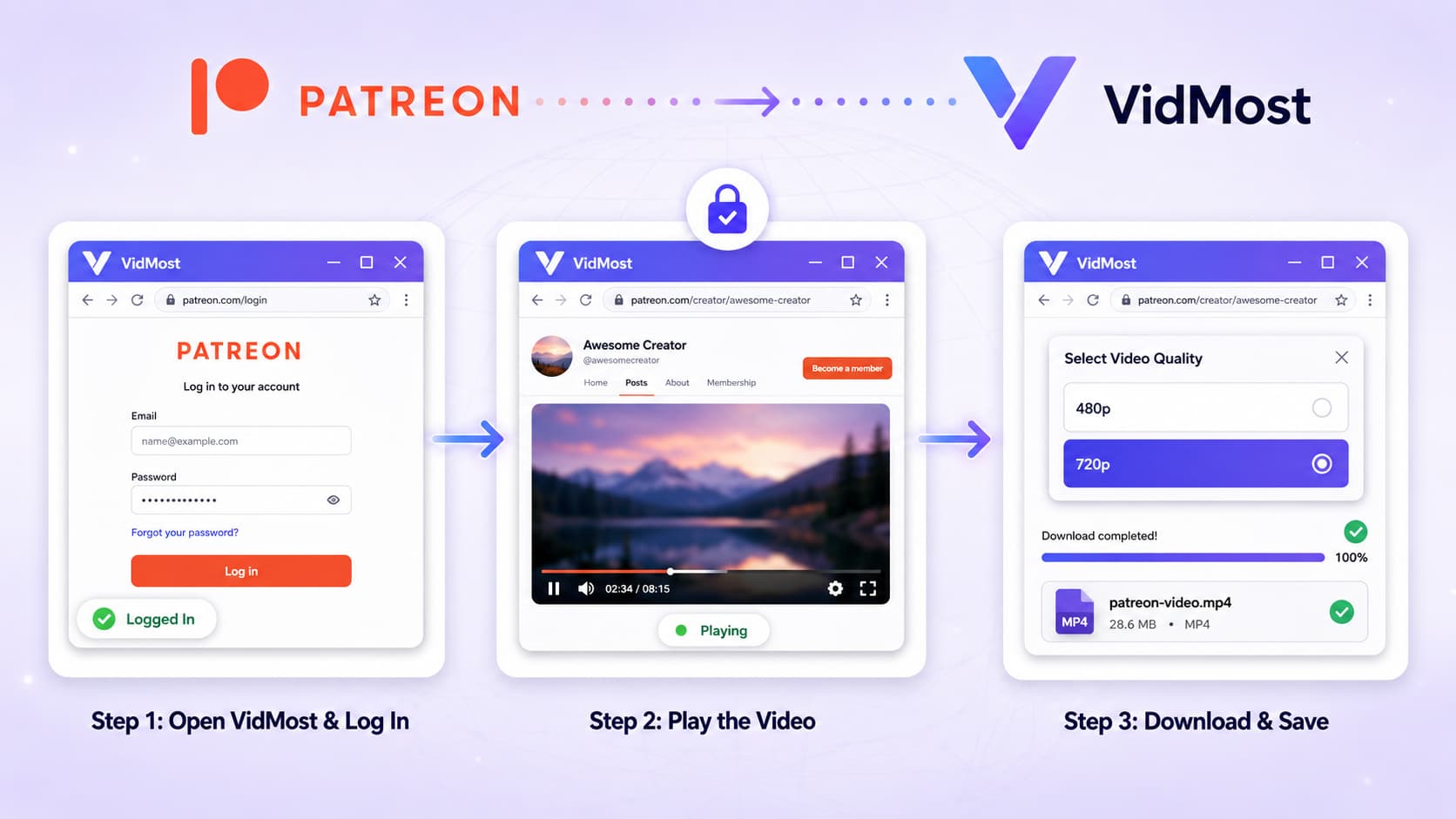
Step 1: Open VidMost and Log Into Patreon
Launch VidMost after installing it. You’ll see a browser interface similar to Chrome — this is VidMost’s working environment.
Type https://www.patreon.com in the address bar and press Enter.
Log into your Patreon account normally — enter your email and password, complete any verification steps. The login process is identical to what you’d do in a regular browser.
Note: The first time you log in through VidMost, Patreon may ask you to verify via email or complete two-factor authentication. This is standard security behavior — follow the prompts as you normally would.
Step 2: Navigate to the Video and Play It
Once logged in, go to the creator’s page you’re subscribed to and find the video you want to download.
Click the video to start playback. You don’t need to watch the entire video — just let it begin playing. VidMost detects the video stream in the background as soon as playback starts.
Tip: Let the video play for a few seconds to ensure the stream loads stably. This gives VidMost a clean signal to capture the full video information.
Step 3: Click the Download Button
Once the video is playing, you’ll see a download button appear in VidMost’s interface — typically in the browser toolbar or at the top of the page.
Click it. VidMost will open an options window showing available quality settings — usually 480p and 720p options.
Select your preferred quality, confirm, and the download begins automatically. The file saves to your designated local folder and can be opened with any standard video player when complete.
Why Downloads Are Capped at 720p
You may notice the highest available quality is 720p or 480p rather than 1080p or 4K. Actual quality depends on the playback quality Patreon provides to the current browser session, not a VidMost setting.
Different devices and browser sessions may receive different playback quality. VidMost records what is already playing normally in the current browser session; it does not improve the quality provided by the platform.
For personal archiving and offline viewing within the allowed scope, the available browser playback quality is usually sufficient for most use cases.
Batch Downloading Multiple Videos
If you want to download several videos from the same creator, you don’t need to handle each one manually.
VidMost supports a batch download queue — play each video in sequence, click the download button each time to add it to the queue, and VidMost processes all downloads automatically in order. You can start the queue and come back when everything is done.
This is especially useful when:
-
You’ve subscribed to a course creator and want to save all lessons locally
-
A creator you follow is closing their account and you want to archive their content before it disappears
-
You’re downloading a batch of videos before a trip for offline viewing
Where Downloaded Files Are Saved
By default, VidMost saves files to your system’s designated download folder or a path you specify in settings. Downloaded files are in standard MP4 format — compatible with VLC, Windows Media Player, QuickTime, or any mainstream video player, and can be imported directly into editing software.
A Note on Responsible Use
Whether you can save Patreon content depends on your local law, Patreon terms, and creator authorization. Keep local copies only for content you are allowed to archive.
What’s acceptable:
-
Saving to your device for offline or personal viewing
-
Archiving content you’ve paid for as a backup
-
Protecting against losing access due to account issues or creator decisions
What’s not acceptable:
-
Uploading downloaded content to other platforms or sharing publicly
-
Accessing content you have not subscribed to or purchased
-
Using downloaded content for any commercial purpose
Troubleshooting Common Issues
Video is playing but no download button appears? Confirm the video is actively playing (not buffering). Wait 5–10 seconds for VidMost to detect the stream. If the button still doesn’t appear, refresh the page and start playback again.
Download is very slow? Download speed depends on your internet connection. Close other bandwidth-heavy applications while downloading, or schedule downloads when your connection is faster.
Downloaded file won’t play? Verify the file downloaded completely by checking the file size. Try opening with VLC Player, which has the broadest video format compatibility.
Does my Patreon account need special settings? No. Log in normally and VidMost handles everything else automatically.
VidMost vs Other Methods
| Method | Patreon Membership Content | Quality | Ease of Use |
|---|---|---|---|
| VidMost | ✅ Works | Up to 720p | Simple |
| Screen recording | ❌ Black screen | Limited by display | Fails |
| Browser extensions | ❌ Often fails | Low | Fails |
| yt-dlp | ❌ Errors out | — | Requires terminal |
VidMost is currently the most accessible solution for non-technical users who need to download Patreon video content. No setup complexity, no command line — working downloads in minutes after installation.
Summary: The Full Process
Patreon video downloads require normal browser playback plus recording mode. Standard tools cannot handle that workflow. VidMost can because it uses a Chromium browser session and records the browser-rendered playback.
The complete process:
- Install and open VidMost
- Log into your Patreon account inside VidMost
- Navigate to the video and start playback
- Click the download button, select quality, confirm
- File saves locally — done
Use VidMost within platform terms and authorization scope to keep local copies of content you are allowed to archive.
Frequently Asked Questions
Is VidMost free? VidMost offers a free tier with basic download functionality. The Pro plan includes unlimited downloads, batch processing, and advanced platform support — $48/month or $38/year.
Does VidMost work on Mac and Windows? Yes. VidMost is available for both Windows and Mac, with identical installation and operation on both platforms.
What other platforms does VidMost support beyond Patreon? VidMost supports 1,000+ platforms including OnlyFans, Fansly, Twitch, YouTube member content, Bigo Live, and many other membership and public streaming platforms.
How long does a typical download take? VidMost uses multi-thread downloading for speed. A 720p video typically completes in a few minutes depending on file size and your connection speed.
Is it safe to log into Patreon through VidMost? Yes. VidMost is built on Chromium — logging into Patreon through VidMost is functionally identical to logging in through Chrome. Your account credentials are handled the same way.
Can I download Patreon live streams? VidMost supports live stream recording — if a creator goes live on Patreon, you can record the stream in real time. For past streams that were saved as videos, the standard download process above applies.