TL;DR: When an OnlyFans creator deletes their account, content you could previously view may disappear immediately, and subscribers lose access with no automatic refund. OnlyFans membership content depends on login sessions, subscription permissions, and platform access rules, so standard download tools are often unreliable. VidMost works as a full Chromium browser, authenticates as your subscribed account, and uses browser recording mode to save normal browser playback within your authorization scope. Five steps, free to start.
Fans spent $7.22 billion on OnlyFans in 2024 (Supercreator, 2026). That is not just a platform statistic — that is real money paid by real subscribers for exclusive content they expect to have access to. Yet the hard truth that most subscribers discover too late is this: the moment a creator deletes their account, content you paid to access may disappear instantly.
No warning. No grace period. No refund issued automatically. Just a blank page where your subscribed creator used to be (Erasa, 2025).
OnlyFans hosts 4.63 million creators and 377.5 million registered users (OFStats, 2026). At that scale, creator churn is constant — accounts get deactivated, old posts get pruned, subscription prices change, and creators migrate to competing platforms. If you have ever lost access to content you paid for, you are not alone. This guide explains exactly why it happens and how to protect the content that matters to you before it disappears.
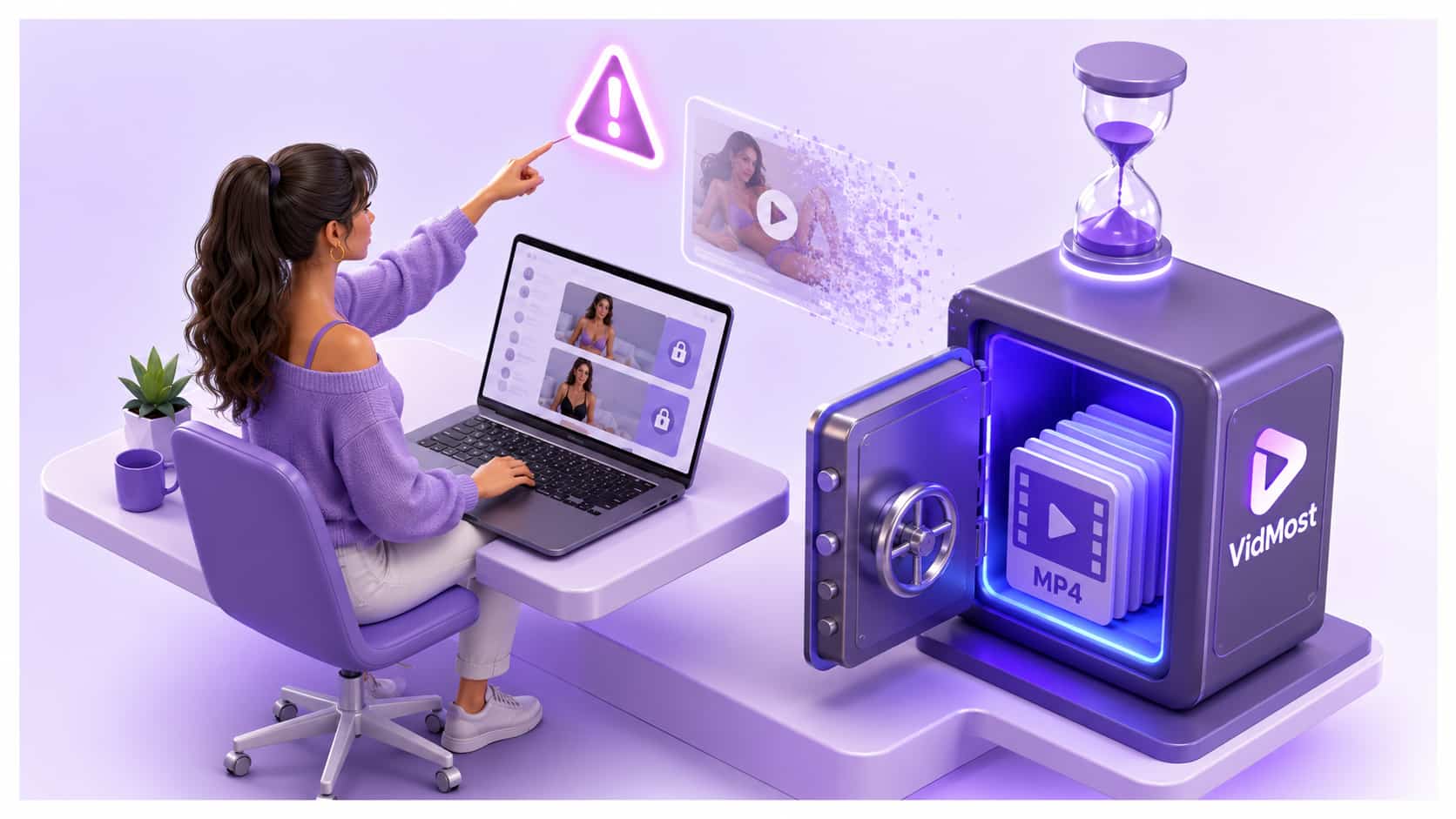
Why Does OnlyFans Content Disappear Without Warning?
OnlyFans content vanishes for three distinct reasons, each of which leaves paying subscribers with no recourse once it happens.
1. Creator account deletion When a creator permanently deletes their OnlyFans account, all content — videos, photos, direct messages — is erased immediately from the platform’s servers. Subscribers lose access regardless of how much time remains on their subscription. OnlyFans does not automatically issue refunds, and deleted content cannot be recovered by the platform or the subscriber (CreatorHero, 2025).
2. Individual post deletion Creators can delete specific posts at any time without notice. A tutorial, a livestream recording, a piece of exclusive content you bookmarked last week — any of it can be gone the next time you log in. OnlyFans does not archive deleted posts or notify subscribers when content is removed.
3. Subscription lapse If your subscription expires and you do not renew, you lose access to all paywalled content. Unlike a book you purchase or a file you download, an OnlyFans subscription grants access — not ownership. Once the subscription ends, the content is inaccessible until you re-subscribe, if the creator is still active at all.
Why Standard Video Downloaders Cannot Handle OnlyFans
If you have already tried a browser extension or a generic video downloader on OnlyFans, you know the result: error messages, broken downloads, or corrupted files that will not play. This is not a coincidence.
OnlyFans membership video is not a simple static file hosted at a URL you can access directly. Playback is usually tied to your authenticated login session, subscription status, and platform access rules. Only verified subscribers can play the content normally.
Standard download tools are built for public video platforms like YouTube or Vimeo. They struggle to reproduce OnlyFans’s session authentication, playback state, and sustained connection. The result is usually the same: failure at some point in the process.
Whether you can save this kind of content always depends on your account permissions, the platform terms, rights-holder authorization, and the law where you live.
How VidMost Handles Member Content
VidMost is a Chromium-based browser — not a plugin, not an external scraper — with browser recording built directly into the engine. Because it is a full browser, it authenticates with OnlyFans exactly the way Chrome or Firefox does: as a real, logged-in subscriber. It sees everything your account is authorized to see.
For OnlyFans membership content, VidMost uses its recording mode: the video plays normally in the built-in browser, then VidMost records the browser-rendered playback within your authorization scope and saves the output as a standard MP4 file.
This is the same browser playback flow you use every time you watch an OnlyFans video. VidMost simply adds a recording step while the video is being rendered for display in the browser. The result is a standard MP4 file saved to your computer; later access and use still need to follow platform terms and rights-holder authorization.
What you’ll need:
-
VidMost installed on Windows or Mac — download free at vidmost.com
-
Your OnlyFans account credentials
-
Time: ~5 minutes for setup, then seconds to minutes per video
-
Difficulty: Beginner
Step 1: Download and Install VidMost
By the end of this step, VidMost will be running on your computer, ready to access OnlyFans as your authenticated account.
VidMost installs like any standard application — there is no browser extension to manage, no configuration file to edit, and no technical setup required. Once installed, it opens as a complete browser window with the stream detection and recording panel on the right side.
- Go to vidmost.com and click Download Free
- Run the installer —
.exefor Windows,.dmgfor Mac - Launch VidMost — it opens as a full browser window
- Locate the recording/download panel on the right side of the interface
Verification: VidMost opens, you can browse any website, and the panel is visible on the right side of the screen.
VidMost’s free plan is sufficient to test the individual video recording flow for OnlyFans. The Pro plan ($10/month, $38/year, or $98 lifetime) adds batch recording for processing multiple authorized videos at once.
Step 2: Log In to OnlyFans Inside VidMost
By the end of this step, you will be fully authenticated on OnlyFans within VidMost — exactly as you would be in your regular browser.
Because VidMost is a Chromium-based browser, OnlyFans treats it identically to Chrome. Your login session, subscription status, and content access are all recognized normally. The platform does not detect any difference between VidMost and a standard browser.
- Click the VidMost address bar, type
onlyfans.com, and press Enter - Click Log In and enter your OnlyFans email and password
- Complete any two-factor authentication if your account has it enabled
- Confirm you can see your subscriptions and feed loading normally
Verification: Your OnlyFans home feed loads inside VidMost with all your subscriptions visible.
If you use a saved password in Chrome, you will need to type your credentials manually in VidMost — password sync does not carry over between browsers. Keep your login details accessible.
Step 3: Navigate to the Content You Want to Save
By the end of this step, the specific OnlyFans video you want to keep will be open and ready to play inside VidMost.
OnlyFans content lives in a few different locations: your feed, a creator’s profile page, purchased posts, or paid message attachments. VidMost captures video from all of these locations using the same process.
- Navigate to the creator’s profile page or find the specific post in your feed
- Scroll to the video you want to save and click to open it
- For feed posts: click the video thumbnail to expand it to full view For purchased content: navigate to the creator’s media tab and locate the video For PPV (pay-per-view) messages: open the message thread containing the video
- Do not press play yet — wait until Step 4 to start playback
Verification: The video player is visible inside VidMost and ready to play.
Priority content to save first: Start with your most valuable purchases — long-form videos, custom content you commissioned, and content from creators who have been less active recently. These are the highest-risk items for disappearing without notice.
Step 4: Enable Recording Mode and Start Playback
By the end of this step, VidMost will be actively recording normal OnlyFans video playback to your computer.
OnlyFans membership content usually requires recording mode rather than stream sniffing because playback depends on your logged-in session and access permissions. VidMost’s recording mode saves the browser-rendered playback during normal playback, which is why it is more reliable than page plugins or network-segment tools.
- In the VidMost panel on the right, switch to Recording Mode (not stream detection)
- Set your preferred output quality — actual quality depends on the playback quality OnlyFans provides to the current browser session
- Select your output folder — VidMost defaults to your Downloads folder
- Click Start Recording
- Now press Play on the OnlyFans video — VidMost begins capturing from the first frame
Verification: The recording indicator is active and the timer is counting upward as the video plays.
Do not skip ahead in the video while recording. VidMost captures the video as it plays in real time. If you skip forward, those sections will not be in your recording. Let the video play at full speed from beginning to end for a complete file.
Step 5: Stop Recording and Find Your Saved File
By the end of this step, you will have a local MP4 copy of the OnlyFans video saved on your computer.
VidMost saves recordings as standard MP4 files — playable in VLC, Windows Media Player, QuickTime, and any video editor without conversion.
- When the video finishes playing, click Stop Recording in the VidMost panel
- VidMost finalizes the file and shows a “Recording Complete” notification
- Click the folder icon to open the file location in File Explorer (Windows) or Finder (Mac)
- Rename the file with the creator name and content description for easy organization
Verification: The MP4 file opens in your media player and plays from beginning to end without errors.
Building a personal library: Create a folder structure organized by creator name. As you save more content, consistent naming conventions make it easy to find specific videos without scrolling through hundreds of files.
What Content Is Most at Risk — and Should Be Saved First
Not all OnlyFans content carries the same disappearance risk. Prioritize saving these categories first:
| Content Type | Risk Level | Why |
|---|---|---|
| Custom commissioned content | 🔴 Highest | One-of-a-kind, exists nowhere else |
| PPV (pay-per-view) messages | 🔴 Highest | Deleted with creator’s account or message purge |
| Content from less-active creators | 🟠 High | Inactive accounts are more likely to be deleted |
| Older posts (12+ months) | 🟠 High | Creators frequently prune old content |
| Livestream recordings | 🟠 High | Often removed after a short availability window |
| Recent feed posts | 🟡 Medium | Lower immediate risk but still subject to deletion |
Common Mistakes to Avoid
1. Waiting until after a creator announces they are leaving Once a creator publicly announces account deletion, their content is usually gone within days — sometimes hours. By the time you see the announcement and open VidMost, the videos may already be inaccessible. Save content from creators you value before any warning signs appear.
2. Using stream sniffing mode instead of recording mode OnlyFans uses platform protection mechanisms, and ordinary stream sniffing is usually not suitable for this kind of membership content. Use VidMost’s recording mode for OnlyFans content, and only process content you are authorized to view and allowed to save. Stream sniffing is for open HLS platforms like Kick and Chaturbate.
3. Skipping ahead in the video during recording VidMost captures video in real time as it plays. Seeking forward creates gaps or corrupts the output file. Play videos at full speed from beginning to end for a clean recording.
4. Not organizing downloads by creator After saving dozens of files, an unorganized download folder becomes impossible to navigate. Set up a folder structure before you start: one folder per creator, named files by date and content type.
What Success Looks Like
You now have a local MP4 file of your OnlyFans content. Later access and use should still follow platform terms and rights-holder authorization. Do not share, resell, or republish the content.
A 10-minute OnlyFans video at 720p typically runs 200–600 MB depending on the encoding. For subscribers with large libraries, an external hard drive is worth the investment — a 2 TB drive holds thousands of hours of content and costs under $60.
VidMost’s free plan covers individual recordings with no daily cap. If you want to save multiple videos more efficiently, the Pro plan at $10/month, $38/year, or a one-time $98 lifetime payment adds batch recording and priority processing.
Next step: Organize the content you are allowed to archive within the platform terms and authorization scope, and create clear naming and backup rules for your local files.
Frequently Asked Questions
Is it legal to download OnlyFans videos as a paying subscriber?
Whether you can save OnlyFans videos depends on the law where you live, OnlyFans Terms of Service, and rights-holder authorization. VidMost authenticates as your subscribed account and records content you are authorized to view and allowed to archive. Redistributing, re-uploading, or sharing saved content without the creator’s consent violates OnlyFans Terms of Service and copyright law.
What resolution can I save OnlyFans videos at?
Actual quality depends on the playback quality OnlyFans provides to the current browser session, your account access conditions, and network state. VidMost records the picture that plays normally in the browser; it does not improve the quality provided by the platform.
Can I batch download my entire OnlyFans subscription library?
VidMost Pro supports batch recording, allowing you to queue multiple videos and record them sequentially. Since each video must be played in real time for recording to work, batch recording is most efficient for medium-length content. For very large libraries, plan to run batch recordings overnight.
What happens to my recordings if OnlyFans changes its platform?
Your recordings are standard MP4 files stored locally on your computer, but later use still needs to follow platform terms, account permissions, and rights-holder authorization. If platform policies change, follow the latest terms.
Does VidMost work on Mac as well as Windows?
Yes. VidMost supports Windows 10/11 and macOS 12 (Monterey) and later. The recording process is identical on both platforms. MP4 files play natively in QuickTime on Mac without any conversion needed.
Within platform terms and authorization scope, VidMost can help you save content you are allowed to archive — download free at vidmost.com and start building your personal archive today.