VidMost is an out-of-the-box browser app. You don’t need to install any plugins, copy links to other tools, or do anything complex – just open it and use it.
This tutorial will guide you through the entire process with actual screenshots, so you’ll be able to master it after reading.
Interface Overview: 4 Core Areas
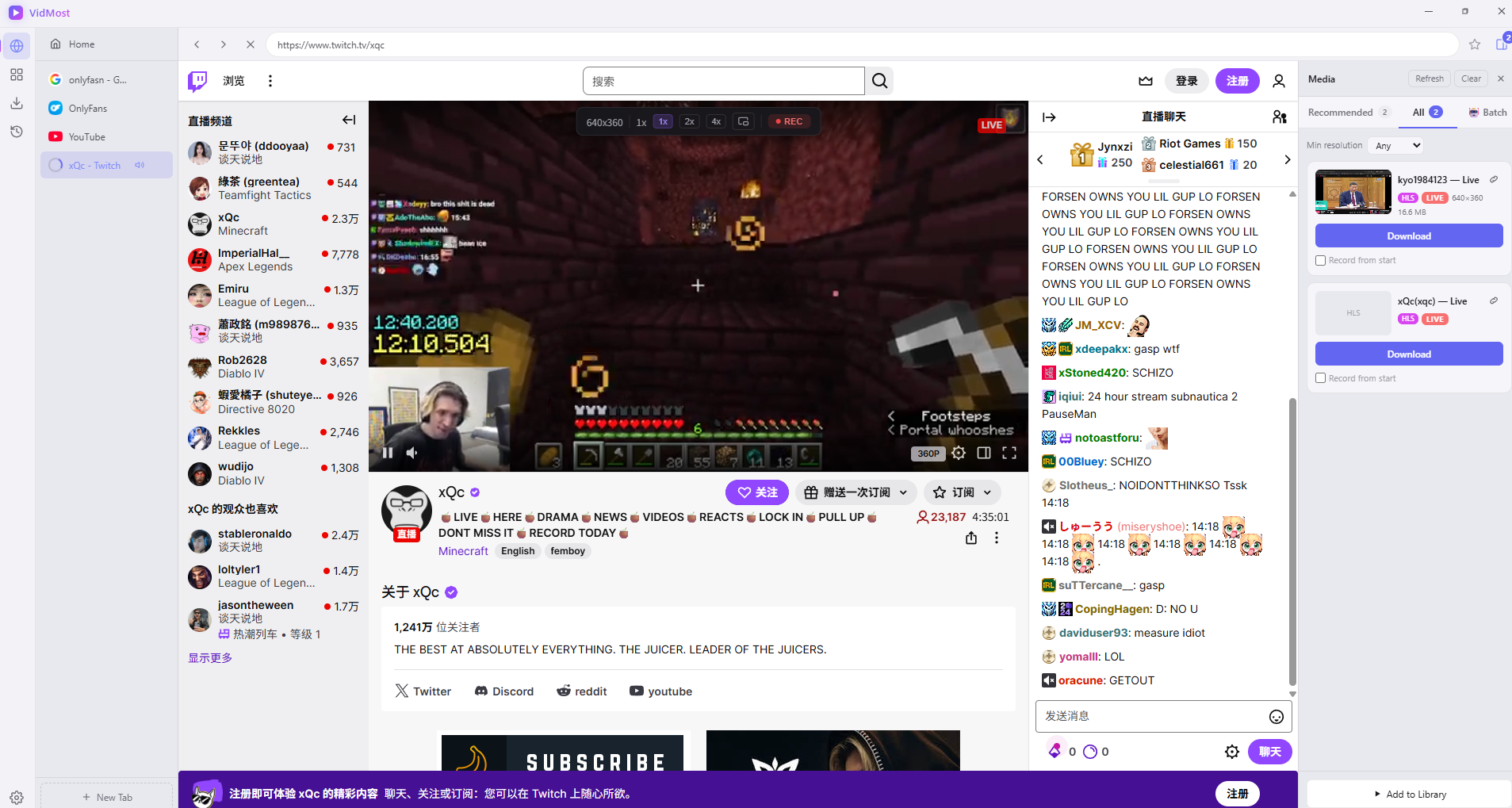
Upon opening VidMost, the interface is divided into four main areas:
| Area | Location | Function |
|---|---|---|
| Left Sidebar | Far left, 4 icons | Switch between Home, Bookmarks, Downloads, and History |
| Tab Bar | Left Panel | Manage multiple open web pages |
| Browser Main Window | Center | Browse websites normally |
| Media Panel | Right Side | Automatically detects and downloads videos |
Quick links to popular websites are pre-built: YouTube, TikTok, Twitch, OnlyFans, Reddit, X, and more. Simply click to visit them.
Core Logic: Just Remember This
Browse the page normally, and the Media Panel on the right will automatically detect videos. Click the download button.
No need to copy links, no need to switch between tools; everything is done within the same window.
Downloading Regular Videos (Example: TikTok)
Step 1: Open the Target Platform
Enter tiktok.com in the address bar, or click the TikTok shortcut icon on the homepage, and browse content as usual.
Step 2: Media Panel Automatically Detects
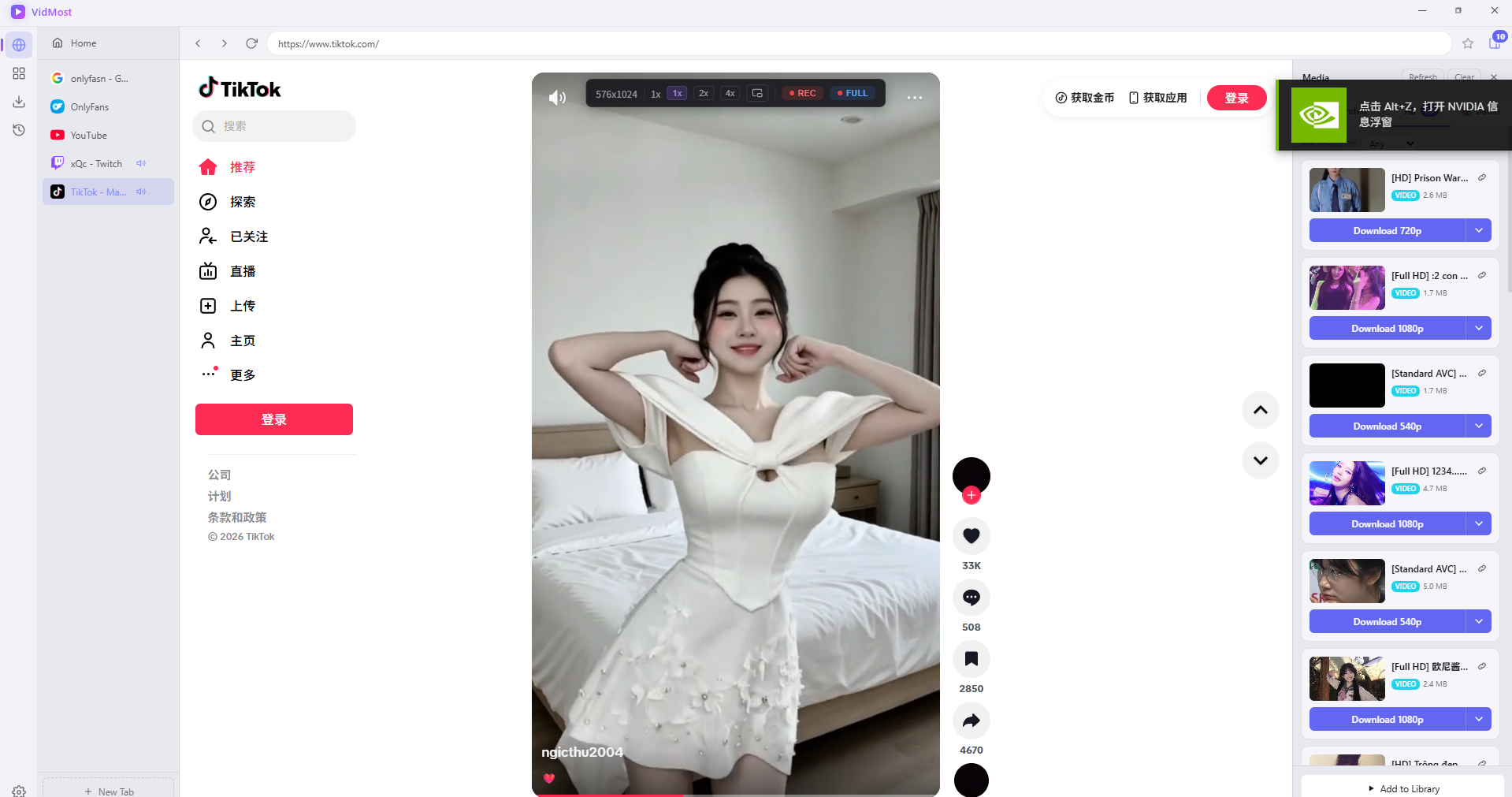
After the page loads, the Media Panel on the right will pop up automatically, displaying:
-
Recommended Tab: The current optimal video, with a direct download button.
-
Video title, file size, and available resolutions.
Step 3: Batch Detect More Videos
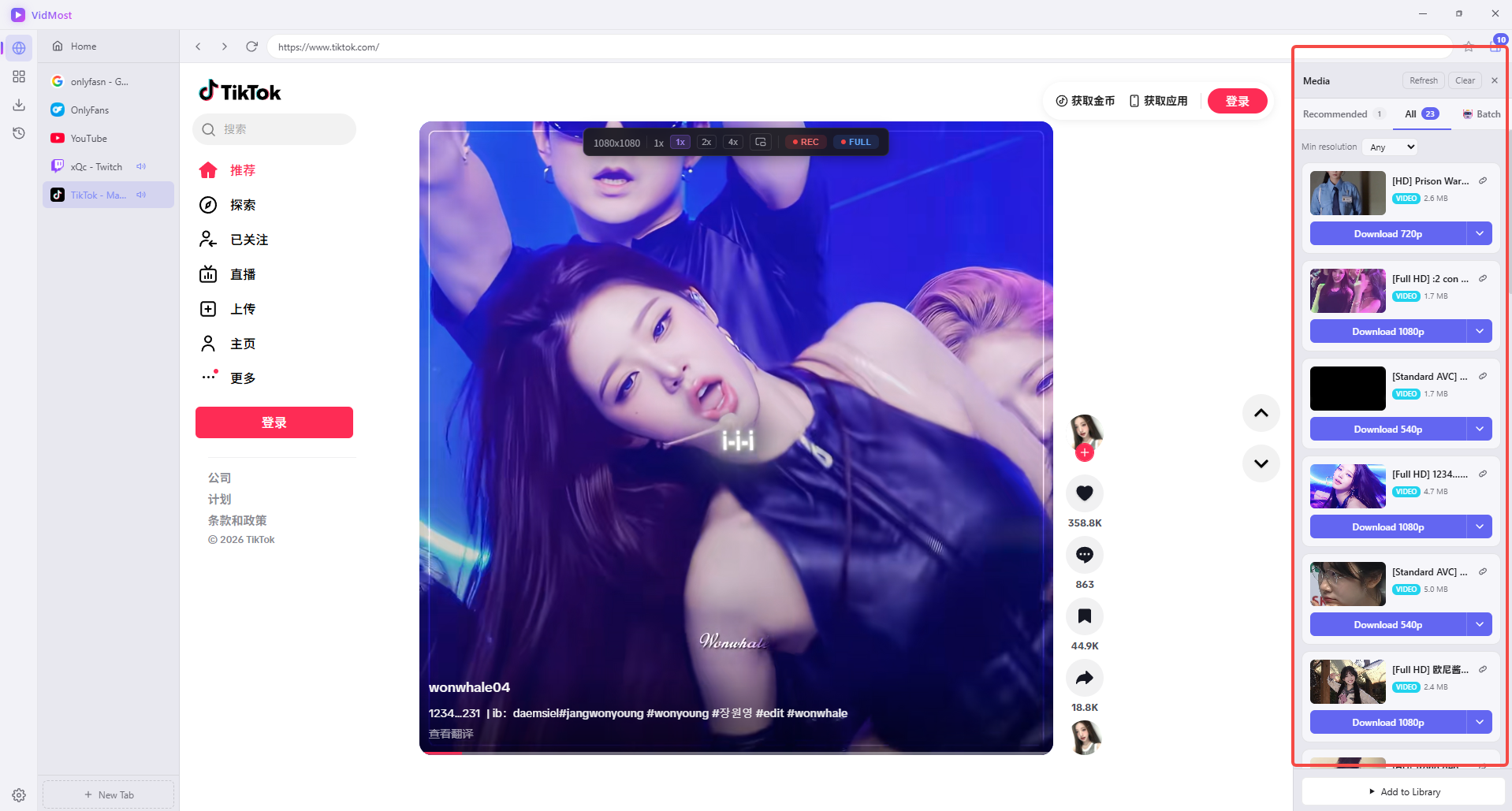
Switch to the All tab to see all detected videos on the page. Scroll down the page, and the number of detected videos will continuously increase.
It’s been tested that scrolling through TikTok for about 1 minute can detect over 40 videos.
Step 4: Select Resolution and Click Download
Each video entry shows:
-
Thumbnail + Title
-
File Size
-
Resolution options (1080p / 720p, etc.)
Click the Download 1080p button, and the video will be added to the download queue.
If you need to download multiple videos at once, click the Batch tab, select them, and then download them all together.
Downloading OnlyFans Videos (Login Required)
OnlyFans videos depend on signed-in member playback, account permissions, and platform access rules. Ordinary link parsers often fail on that workflow. VidMost has browser-based support for those membership platforms.
Step 1: Open OnlyFans and Log In
Visit onlyfans.com and log in using your email and password, or your X/Google account.
Note: The Media Panel will show “No recommended resources yet” before logging in, which is normal – content can only be loaded after logging in.
Step 2: Play the Target Video
After logging in and navigating to the creator’s page, click to play the video you want to save. VidMost will automatically detect the video stream during playback, and the Media Panel will then display download options.
Step 3: Click Download
The process is the same as with TikTok: select the resolution and click the download button.
Downloading Twitch Streams (Record While Streaming)
This is one of VidMost’s most practical features, especially for gaming creators and content producers.
Step 1: Open the Streamer’s Live Page
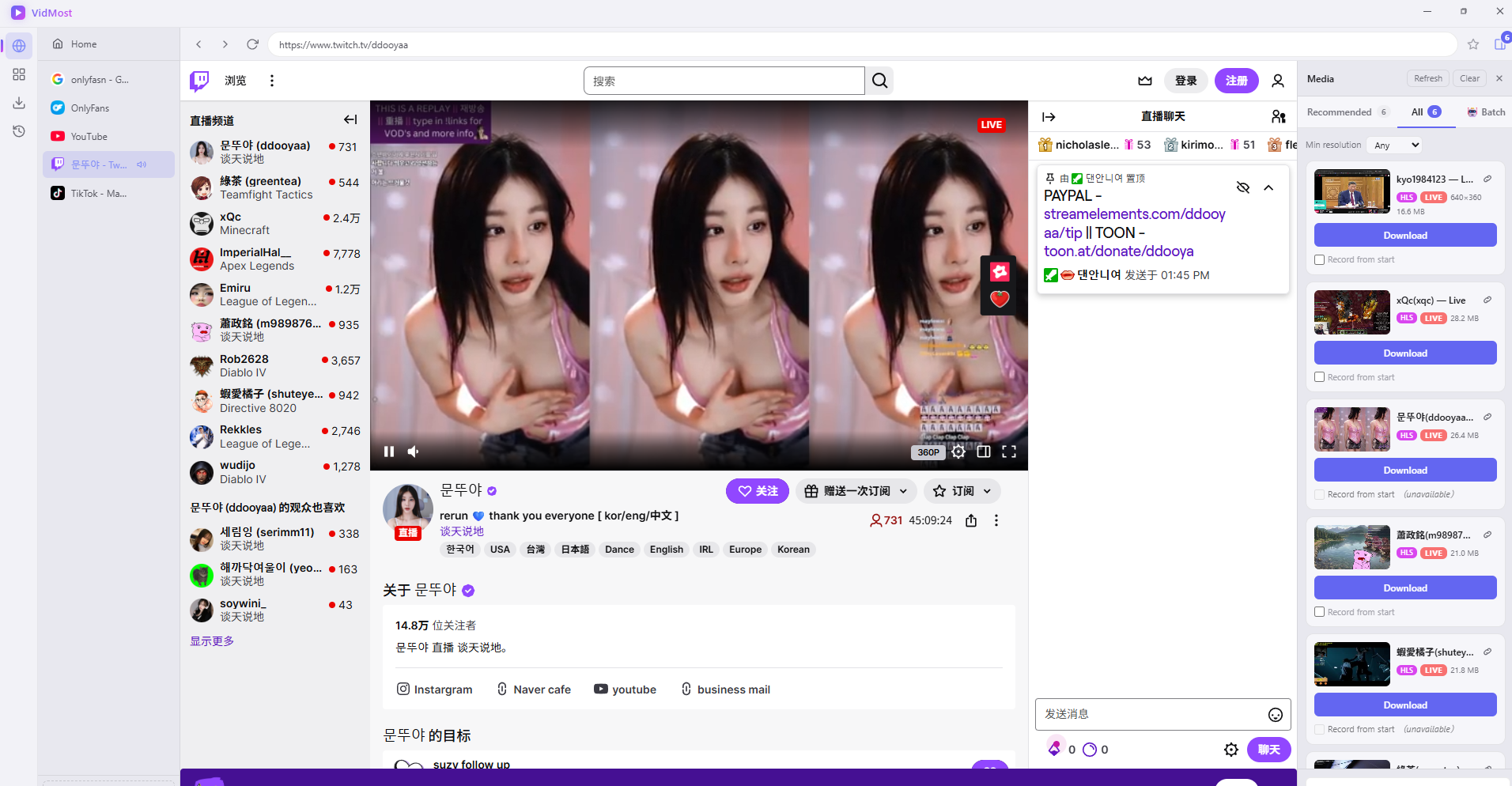
Visit any streamer’s page that is currently live. The Media Panel will automatically detect the live stream and display:
-
Streamer Name + Live tag (red)
-
Current file size (continuously increasing)
-
Download button
A single page can detect multiple live streams simultaneously, each downloadable independently.
Step 2: Click Download to Start Recording Live
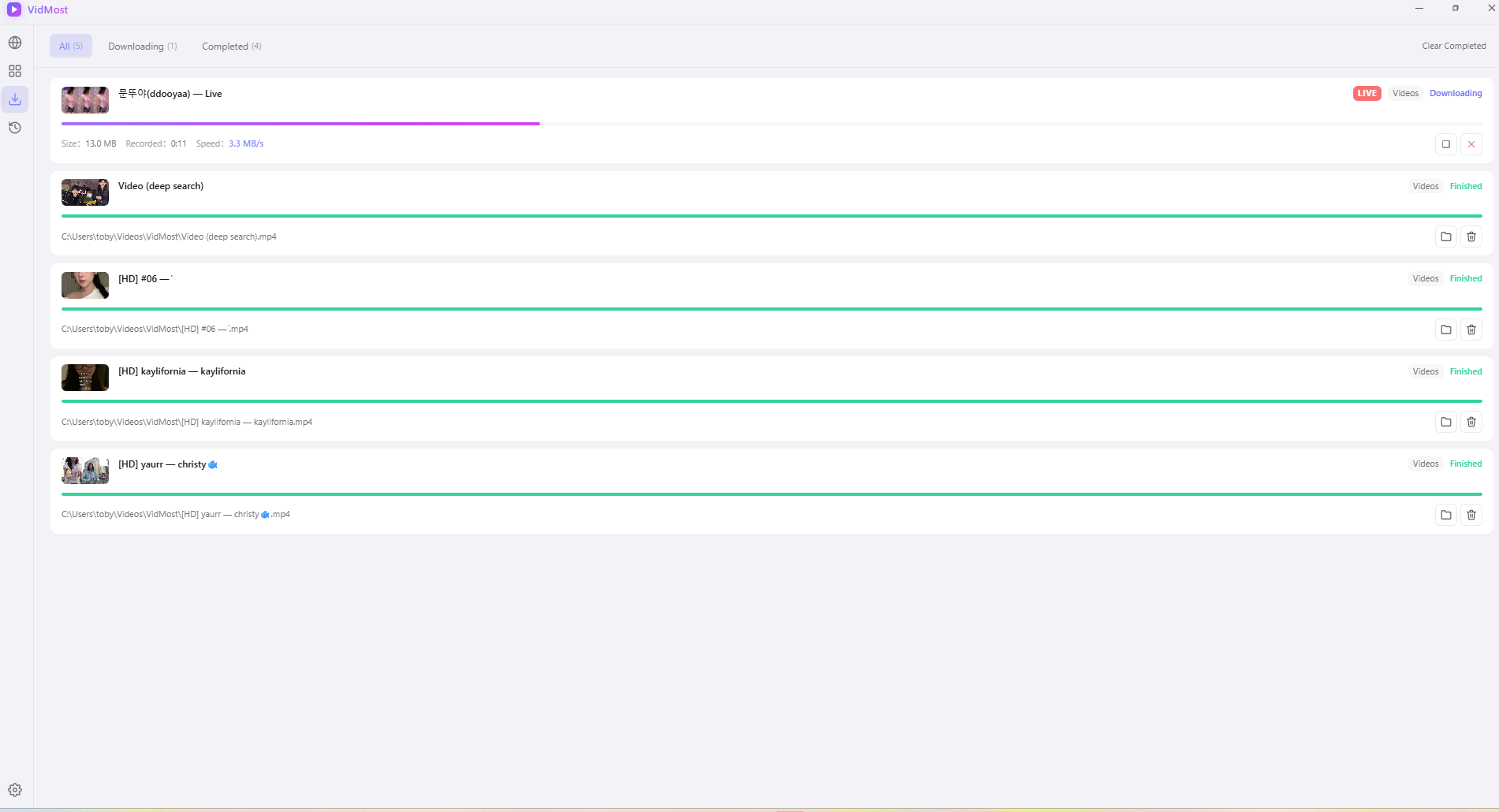
After clicking download, you’ll be taken to the download management page where you’ll see:
-
Live (red tag) + Downloading (green tag)
-
Real-time recording speed (approx. 3.1 MB/s)
-
Recording duration continuously increasing
VidMost records in sync with the live stream. You don’t need to wait for the stream to end; you can start and stop at any time.
Viewing Download Progress and History
Download Management Page
Click the download icon in the left sidebar to view the status of all tasks:
-
Green progress bar = Completed
-
Click the 📁 icon to open the folder where the file is saved directly.
-
Files are saved by default to
C:\Users\YourUsername\Videos\VidMost\
History Page
Click the history icon on the left to view all downloaded content by time:
-
All / Today / Within 7 days / Within 30 days
-
Each record displays thumbnail, filename, size, and time.
-
You can open or delete entries directly.
Frequently Asked Questions
The Media Panel isn’t detecting videos? Click the Refresh button in the top right corner of the panel, or try playing the video again. Make sure the page is fully loaded before trying again.
Can’t detect OnlyFans videos? Ensure you are logged in and have an active subscription to the creator. Content you are not subscribed to cannot be detected or downloaded.
What if the download fails? Check if your internet connection is stable and your proxy is running correctly. A network interruption during a Twitch stream recording will cause the task to stop; clicking download again will resume recording.
Where are the files saved? The default path is C:\Users\YourUsername\Videos\VidMost\. You can change this in Settings → Downloads.
Which platforms are supported? TikTok, OnlyFans, YouTube, Twitch, Reddit, X, Vimeo, Instagram, Facebook, Dailymotion, and over 1000 other platforms.